
Bios reset and repair Firmware and Computer Motherboard Troubleshooting
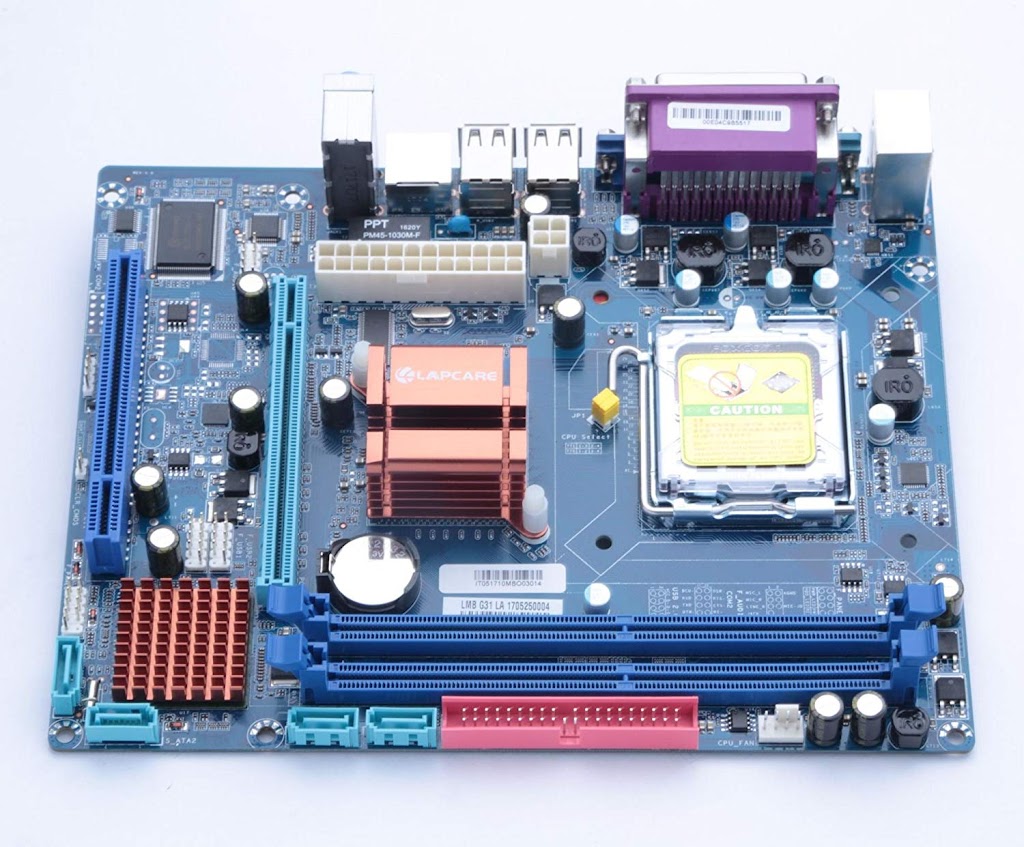
Bios reset and repair – Firmware Troubleshooting and Computer – Motherboard Repair
Computer Hardware Troubleshooting (PC)
Your COMPUTER ( PC ) is a Lot of different components, it is very rare to find any machine, be it a laptop or desktop, that has every component integrated onto a single motherboard . What are these components, and what are the potential problems that can occur with that type of motherboard?
Motherboard
The motherboard is where different types of components connects in your PC . All the other components plug into the motherboard, and chips and circuits on the motherboard regulate all processes . There are generally no problems associated with motherboards, but some components can cause problems . That listed some below.
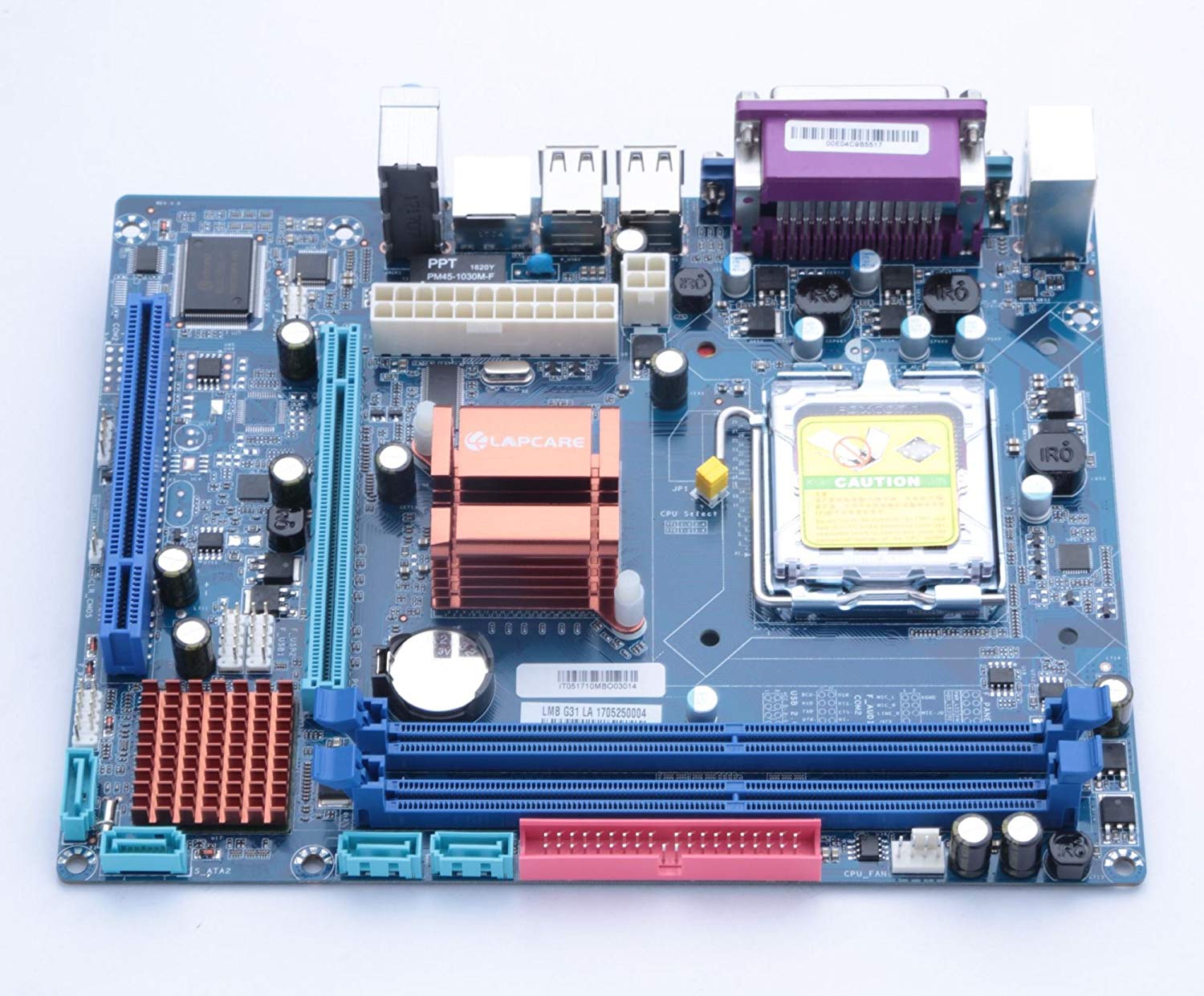
SOCKETS
Sometimes it can be very difficult to plugs and push into the sockets on a some type of motherboard . Take care that the motherboard is properly supported when plugging cables and devices into it to avoid cracking the board .
One good thing about the sockets on motherboards is that each component has its own unique plug shape for right polarity . This prevents users from inadvertently plugging a cable or device into the wrong socket and damaging the motherboard systems.
BIOS
The (BIOS) Basic Input Output System is software on a chip that regulates the computer and gets it started . It initializes all the hardware and allows the software to communicate with all components in motherboard . BIOS checks the components for errors at startup time, a process referred to as the POST (Power On Self-Test), and reports any issues either through warning lights or, more commonly, through a series of warning with various beeps . BIOS software is made by several companies, including AMI, Phoenix, and Award . The name and possibly the logo of the BIOS manufacturer appears when you start your Personal Computer ( PC ).
WARNING BEEPS
There are many different beep codes, and the warning sounds they make will vary depending on your BIOS manufacturer and the manufacturer of your motherboard .
When you start your PC, it will give sound one short beep to indicate that the POST has completed and all components is well functioned . If you hear combinations of short and long beeps, you should check the manual for your motherboard or the manufacturer’s website for the cause .The BIOS beeps sound can give you clear error information about where a fault or potential fault lies with your hardware components .
RESETTING THE BIOS
The BIOS is a program that has stored on a chip (commonly referred to as firmware) on the motherboard, and sometimes it can become corrupt while handling wrong method . The BIOS can be reset to its factory default settings easily . You might need to do this if your PC cannot detect a specific piece of hardware, will not start, or sometimes when you install new hardware .

Example Picture 1
Step 1 .
- Make sure the PC is turned off and disconnected from the main power source .
- Ensure before touching, Ground yourself with your fingertips,
- Touching an unpainted area on the PC using an anti-static wristband, if possible,
- Open the side of the PC to expose the motherboard, placing the PC on a level, firm surface .

Example Picture 2
Step 2 .
- Find the Lithium battery on the motherboard . Unclip the battery to remove it from the motherboard .
- There CMOS will be a Clear by jumper somewhere on the motherboard, close to the battery; The Clear CMOS jumper is a three pin socket with a small connector covering two of the pins.

Lithium Battery
- Remove the connector on the jumper and move it to cover the center pin and the uncovered pin . A small pair of tweezers is useful for doing this .
- Leave the jumper as described above, and then move it back to its original position .
- Replace the motherboard battery .
- Reassemble the Computer ( PC ) case,
- Reconnect it to the main power supply . DONE…

